Example: an 11-megapixel camera photo
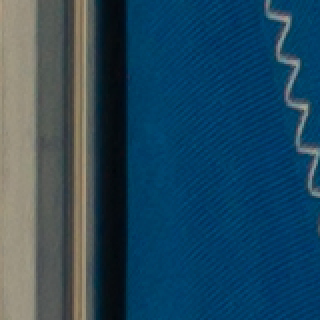 Original · 4.97 MBZoomed in 2×
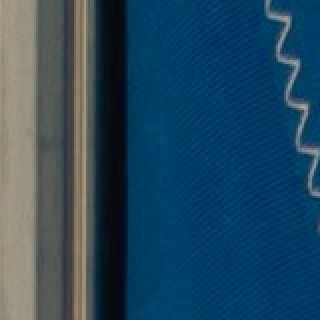 PicoDiet · 666 KBZoomed in 2×
The spot that changed most, zoomed in 2×. Only this close is the flag's weave a touch softer; at normal size the two look the same.
A public-domain harbour photo from a DSLR, with PicoDiet's default settings. The score is SSIMULACRA2, a measure of how close an image looks to the original: 90 and up is usually indistinguishable, 80 looks the same at normal viewing distance.

An image compressor that checks its own work
A fixed compression setting, such as JPEG quality 75, looks fine on one photo and blocky on the next, because some images hide compression better than others. PicoDiet starts from how the result should look: it tries several settings for each image and keeps the smallest file that still reaches your quality score.
Each try is scored with SSIMULACRA2, an open metric built to predict what people see, and checked for small damaged areas such as a smudged face or a line of text. Every compressed image shows its score, and you can open it to compare it with your original.
How to compress images
- Add images. Drop up to 30 at once, choose files, or paste a screenshot with Ctrl+V (⌘V on a Mac). Each one is compressed right away at quality 80.
- Adjust the quality if you want. One slider from 10 to 95. Higher keeps more detail and gives bigger files.
- Compare and download. Open any image to compare it with the original side by side, zoomed in, then download one file or all of them as a ZIP.
Formats it handles
| Format | What PicoDiet does |
|---|---|
| PNG | Finds the fewest colours that keep the look; screenshots and graphics often shrink by half or more. |
| JPG / JPEG | Makes JPG photos smaller while they still meet your quality score. |
| WebP | Stays WebP at the lowest setting that keeps the score; Auto switches photos to JPEG when that is clearly smaller. |
| GIF | Animated GIFs stay animated; switching to animated WebP often halves them. |
| AVIF | Stays AVIF, encoded at the lowest setting that keeps the score. |
| HEIC | iPhone photos become JPEG that opens everywhere, with the Display P3 colours kept. |
Original, Auto or your own choice
Original (the default) keeps each image's format and size and only makes the file smaller. Auto decides per image: photos become JPEG and large photos are scaled down to about 1920 pixels on the long side, while screenshots and graphics keep their format unless PNG or JPEG is clearly smaller. Options lets you pick the format (JPEG, PNG, WebP or AVIF) and a maximum size yourself. A green badge shows when another choice would save more than 10%.
See where it changed
Lossy compression always changes something. PicoDiet shows you where: the compare view opens zoomed in on the part that changed most, with a draggable divider between the original and the new file. A small map in the corner marks the changed areas in yellow to red, so you can check the spots that matter (faces, text, logos) before you download. How the quality is measured explains the numbers.
What happens to your images
Uploaded over HTTPS to the nearest of our servers, processed automatically, and deleted within 3 minutes after you finish. Never shared, sold or used for training. No account needed. Privacy policy
Questions
Is PicoDiet free?
Yes. There is no sign-up and no watermark. Each batch takes up to 30 images, each up to 25 megapixels and 30 MB.
Will my images lose quality?
Not visibly at the default setting. Lossy compression removes information, but PicoDiet keeps only results that score at least 80 on SSIMULACRA2, which looks the same as the original at normal viewing distance. Set 90 or more if the images will be inspected up close or edited again.
How much smaller do files get?
It depends on the image. In our tests at the default setting, a camera JPEG shrank 87%, a Retina screenshot saved as PNG 77%, a photo exported as WebP 33%, and a 12-megapixel iPhone photo became, with Auto, a JPEG 83% smaller than its HEIC at 1920 pixels. Images that were already well compressed shrink less. If PicoDiet can't make a file smaller without going under your score, it keeps the original.
Which formats can I upload?
PNG, JPEG (also .jfif), WebP, GIF (animated too), AVIF, HEIC/HEIF from iPhones, BMP and TIFF. BMP and TIFF come back as PNG, or as JPEG for photos. Results can be JPEG, PNG, WebP or AVIF, and animations can be GIF, WebP or animated PNG.
Does it remove photo metadata?
Yes, from every file PicoDiet makes: camera data and location (EXIF, GPS) are removed, and the colour profile is kept so colours look the same. When your original is already the smallest, PicoDiet gives it back unchanged, metadata included.
Are my images private?
Yes. Images are uploaded over an encrypted connection to the nearest of our servers, optimized, and deleted within 3 minutes after you finish. They are never shared, sold or used for training, and there is no account to sign up for. Details are in the privacy policy.
Can I compress many images at once?
Yes, up to 30 per batch. Change the quality or format for all of them at once or for one image only, then download everything as a ZIP.